
Introduction
For decades, website layout relied on limited tools, such as the float property and absolute positioning. These techniques, although powerful, required complex hacks and often resulted in difficult-to-maintain code. With the advent of modern CSS, front-end development has become much more elegant. Two of the main highlights of this revolution are CSS Flexbox and CSS Grid.
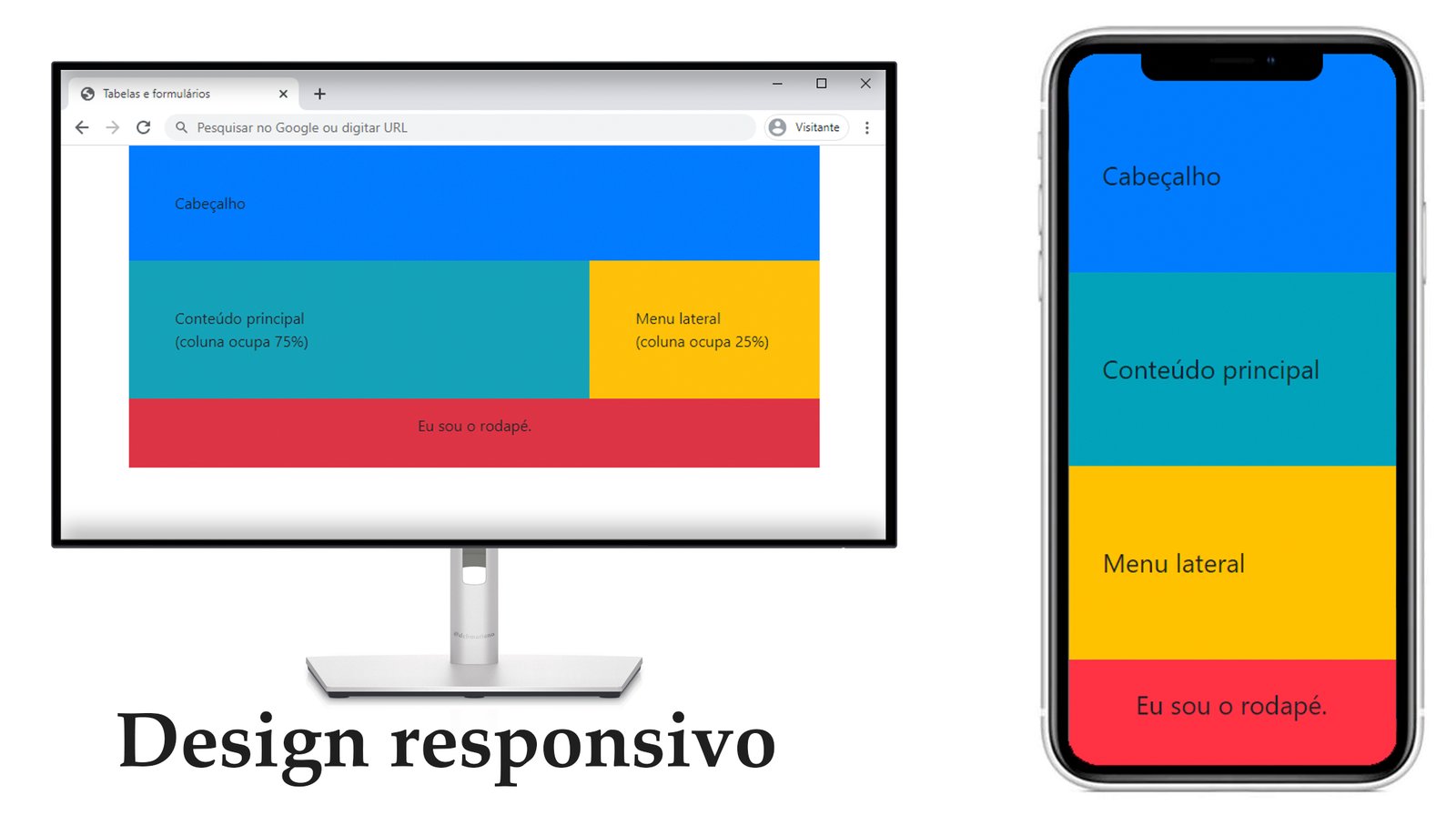
Many beginner developers — and even experienced ones — often wonder: "Which one should I use?" The short answer is: both are great, but they serve different purposes. To master responsive design, it's essential to understand the philosophy behind each.
In this article, we'll explore how Flexbox and Grid work, their main characteristics, and, most importantly, a practical guide on when to apply each technology in your next project.
The Philosophy: 1D vs 2D
To understand the fundamental difference, we need to look at the terminology used by the creators of CSS:
- Flexbox (One-dimensional): Focuses on a single axis. It organizes items in a row or in a column.
- CSS Grid (Two-dimensional): Focuses on two axes simultaneously. It organizes items in rows and columns at the same time.
This distinction is not just theoretical; it defines the type of problem that each tool solves best.
Flexbox: The King of Alignment
Flexbox was designed to solve problems of alignment and space distribution. It's ideal when you want items within a container to be flexible — i.e., change size to occupy the available space — or when you need to perfectly center items.
When to Use Flexbox?
- Navigation (Menus): This is the classic application. You want menu items to occupy equal space or align to the right/left.
- Central Alignment: Positioning a card or modal exactly in the middle of the screen is trivial with Flexbox.
- Item Rows: When you have a list of products or buttons that should adjust to the text size inside them.
Practical Example: Navigation Menu
Imagine you want to create a horizontal menu where items stretch to fill the width of the bar, regardless of the number of items.
<nav class="navegacao">
  <a href="#inicio">Início</a>
  <a href="#produtos">Produtos</a>
  <a href="#sobre">Sobre</a>
  <a href="#contato">Contato</a>
</nav>
Here's the CSS needed to make this work:
.navegacao {
  display: flex;            /* Enables Flexbox */
  justify-content: space-between; /* Distributes items with space between them */
  align-items: center;      /* Vertically aligns to the center */
  background-color: #333;
  padding: 10px;
}

.navegacao a {
  color: white;
}
Post glossary
- css
- Cascading Style Sheets: the language used to style web pages, controlling colors, fonts, layout and responsiveness.
- flexbox
- A CSS layout model for distributing elements in one dimension (row or column) with flexible alignment.
- grid
- A two-dimensional CSS layout model that arranges elements in rows and columns at once.